
Section 1
Device description
Atom360‑Proton is a Software as a Medical Device (SaMD) designed to assist in the screening and diagnosis of potentially malignant disorders in the oral cavity, including precancerous and cancerous lesions. The system utilises advanced artificial‑intelligence algorithms to analyse high‑resolution images of the oral cavity captured by any smartphone camera with a minimum resolution of 5 megapixels. It employs deep‑learning models trained on diverse datasets of oral lesions, enabling it to identify various types of suspicious tissue change, and provides users with an assessment of potential abnormalities — clearly indicating areas of concern for further professional evaluation.
How it is made available
The ready‑to‑use mobile application, built on Atom360‑Proton, for clinicians, health workers, and individuals. Install it from the Google Play Store (Section 5).
A Software Development Kit for integrating the same screening capability into any other app or platform, including healthcare systems. berry.care itself runs on this SDK. Contact discover@atom360.ai for integration.
Note for SDK integrators. These instructions apply equally when Atom360‑Proton is accessed through a host application. Integrators must make this IFU available to end users and must not alter the intended use, warnings, or result classifications.
Section 2
Intended use & indications
Intended use
Atom360‑Proton is an advanced artificial‑intelligence software designed to visually interpret lesions in the mouth (screening and early diagnosis) and differentiate them into normal, oral potentially malignant disorders, or cancerous lesions.
Indication
Atom360‑Proton is intended to assist healthcare professionals and users with basic smartphone skills in the early detection and classification of potentially malignant oral disorders, including precancerous and cancerous lesions.
Intended users
The screening output is to be interpreted in the context of a clinical examination by a qualified healthcare practitioner. The software provides no treatment recommendation.
Section 3
Contraindications & limitations
Not for emergency use. Do not use the software to assess acute bleeding, trauma, severe pain, or airway compromise. Seek immediate medical care.
Not a rule‑out tool. A "Normal" result does not exclude malignancy. Persistent symptoms (ulcer > 2 weeks, lump, red/white patch, unexplained bleeding) require clinical evaluation regardless of the result.
Not a substitute for biopsy. Histopathology remains the diagnostic gold standard. The AI output is an adjunct only.
Oral cavity only. The software has not been validated for lesions of the throat, tonsils, skin, or any site outside the visible oral cavity, nor for patients under 18 years of age.
Image quality dependent. Performance degrades with blur, poor lighting, obstruction (food, dentures, instruments), or images of anything other than oral mucosa.
Section 4
Pre‑use requirements
Use indoors or in shade with adequate, even lighting. Avoid direct sunlight on the subject's face, strongly coloured ambient light, and situations where the phone or subject is moving. The software places no other environmental restriction, as image capture is the only physical interaction.
Section 5
Installation & registration
- 1
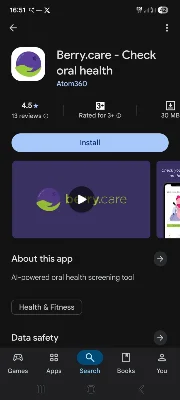
Search for "BerryCare" on the Google Play Store and verify the publisher (Atom360) before installing. Enable auto‑update, or check for updates before each use.
- 2
Register with your mobile number and OTP. If you want to be part of an organization where the payment is skipped contact your administrator to add you to the org. Accept the invite in the berry.care app notification.
- 3
Grant camera and storage permissions when prompted. The app cannot perform a screening without camera access.
- 4
Clinicians and health workers: create a new patient profile or select an existing one. Verify the patient's identity before every scan — submitting one patient's images under another's profile is a reportable use error.
Section 6
Performing a scan
Image quality is the single biggest factor in result reliability. Prepare the subject — rinse the mouth, remove removable dentures, wipe the camera lens — then follow the capture guide below.
- 1
Start a new screening and follow the on‑screen guide. The app requests images of specific regions: lips, cheeks (buccal mucosa), tongue (top, sides, underside), floor of mouth, and palate.
- 2
Hold the phone 10–15 cm from the mouth, torch on, and let autofocus settle before capturing. Retake any image the app flags as low quality.
- 3
Answer the risk‑factor questions (tobacco, areca nut, alcohol, symptom duration) accurately — they form part of the screening record.
- 4
Review all images, then submit. With a network connection the result typically appears within seconds; offline submissions are analysed on upload.
The ten capture regions
The app walks you through ten regions in this order. Step through them here to see the on‑screen guide for each region and why that region matters for oral cancer screening.
What to capture —
Why it matters —
Section 7
Reading results & reports
Every screening produces a two‑page PDF report. Depending on the AI finding, the functional checks, and the participant's habit history, the report follows one of six outcome paths — from routine reassurance to urgent referral. Choose an outcome to load the real report, then use the arrows to walk through it section by section.
1 · Choose a report outcome
2 · Walk through the report
You can also scroll the report itself — the green highlight follows the section being explained.
Section 8
Warnings & cautions
Warning — a situation that could lead to erroneous screening output or delayed care. Caution — a situation that may cause minor or moderate impact. Read every tab before first use.
Section 9
Regulatory information & symbols
BerryCare (Atom360‑Proton) is developed and maintained under a quality management system aligned with international standards for medical device software:
Market availability. The regulatory status of software as a medical device differs by country. Contact discover@atom360.ai to explore collaboration to enter your country.
Section 10
Incident reporting & vigilance
Any serious incident that occurs in relation to this software — a malfunction or output that led, or could have led, to serious deterioration in a person's health — should be reported to the manufacturer and to the competent authority of the country in which the user and/or patient is established.
What to include in a report
- Date and time of the event, software version, and phone model.
- The screening ID or report reference (never send patient images by email).
- A description of what happened and any clinical consequence.
- Your role and contact details for follow‑up.
User feedback on incorrect outputs, submitted in‑app or by email, is reviewed under the manufacturer's post‑market surveillance process and informs model and labelling updates.
Section 11
Troubleshooting & support
If errors in software performance are suspected, the patient should be examined by a qualified clinician in person. Support: discover@atom360.ai